Building your website
Settings then Website Editor builds the website at your PetDesk web address. The Build tab holds sections, each made of blocks such as headings, text, images, opening hours, testimonials and buttons; drag sections to reorder them and click a block's pencil to change it. The Design tab switches between four looks (Classic, Meadow, Clinic and Studio), with a Preview of your own site in each first. The Settings tab sets the header colour and banner image; your name, address, phone, email and hours come from Business Profile. Every change is saved and live straight away; there is no publish button.
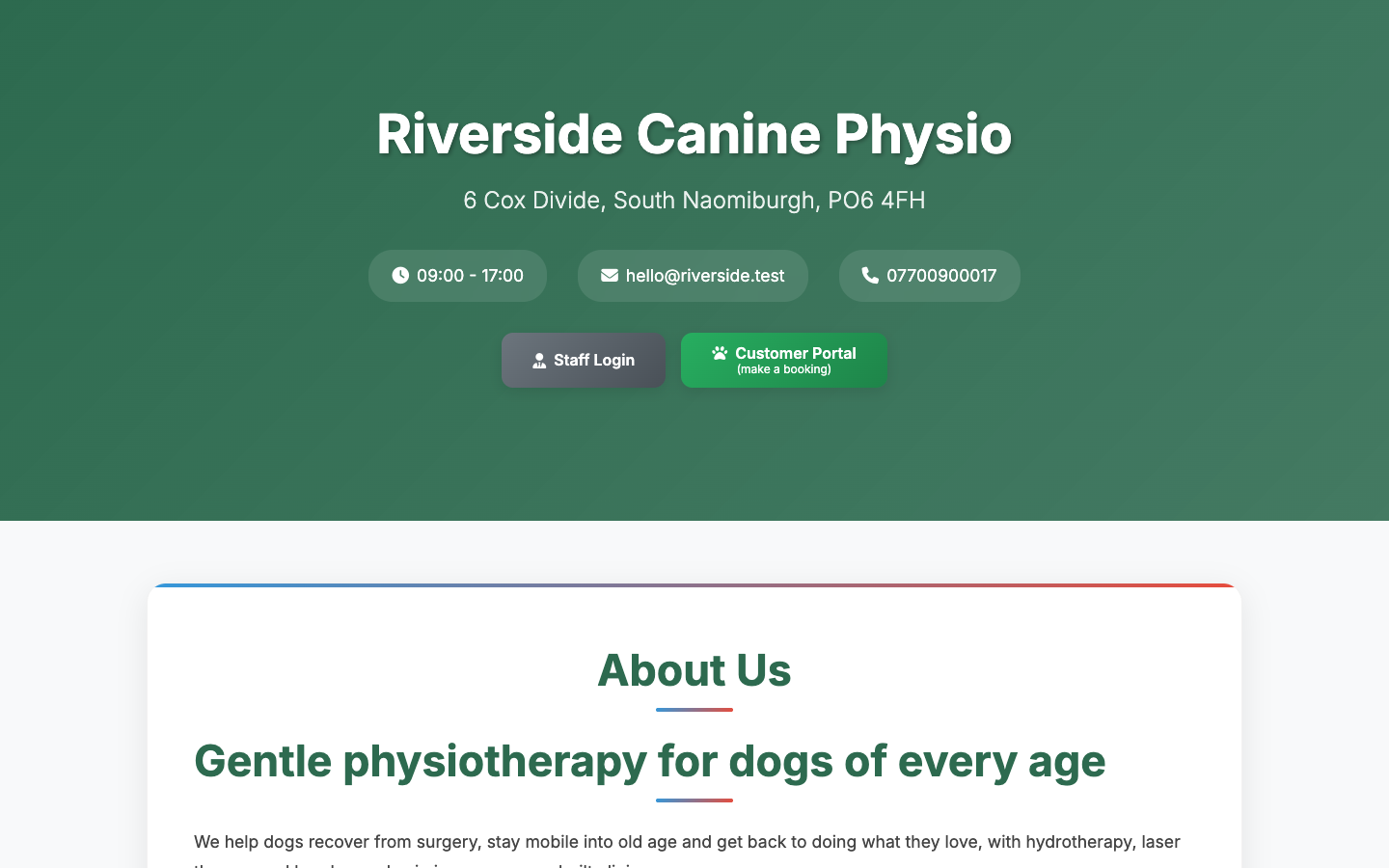
Every PetDesk business has a website at its web address, the one ending .app.petdesk.co.uk. The top of the page is filled in for you from Settings → Business Profile: your business name, address, opening hours, email and phone number, with a button for customers to book through your customer portal. Below that you add your own sections in Settings → Website Editor, and on its Design tab you choose how the whole site looks. Every change is saved and live as soon as you make it; there's no publish button.
1. Add a section
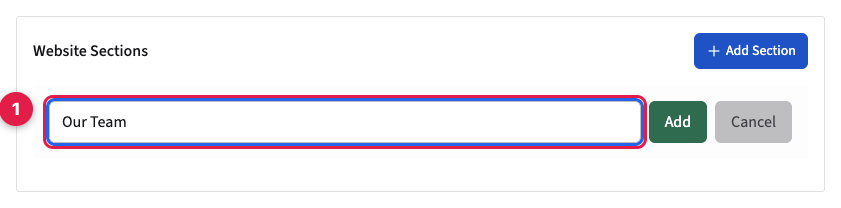
A section is one part of the page, such as About Us, Our Services or Meet the Team. Its name is shown as the section's title on your website. On the Build tab, click Add Section, type a name and click Add.
2. Fill it with blocks
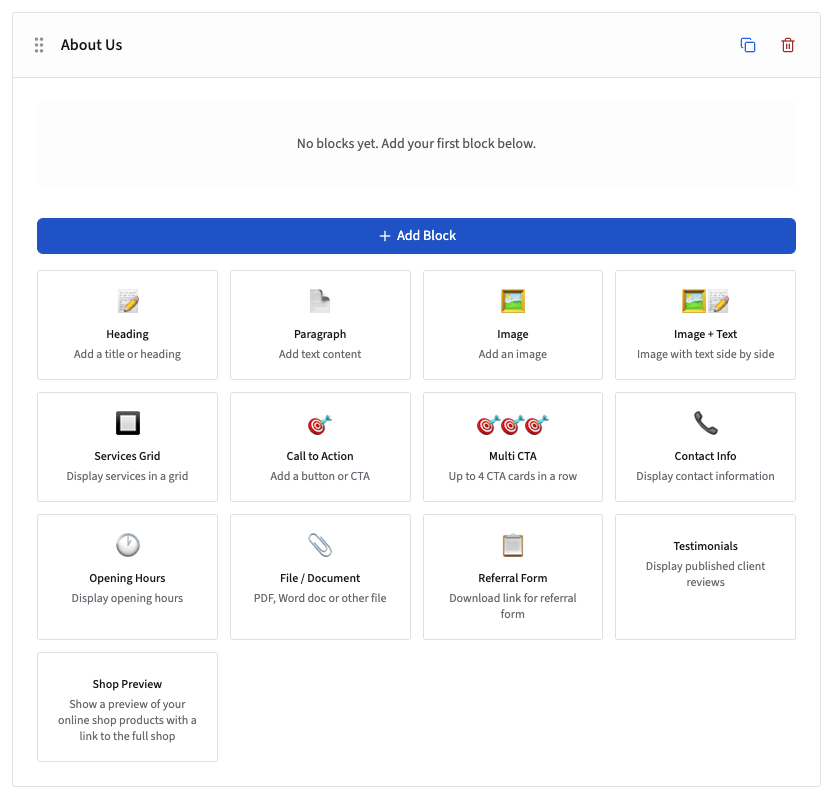
Each section is built from blocks, stacked top to bottom. Click Add Block in the section and choose one:
- Heading and Paragraph for text, Image for a picture, and Image + Text for a picture beside some text.
- Services Grid to show your services side by side.
- Call to Action for a single button, such as "Book now", and Multi CTA for up to four side by side.
- Contact Info and Opening Hours. Opening Hours starts with the hours from your Business Profile.
- File / Document for a download such as a price list, and Referral Form for a vet referral form.
- Testimonials for the client reviews you've published, and Shop Preview for a few products from your online shop.
3. Write each block
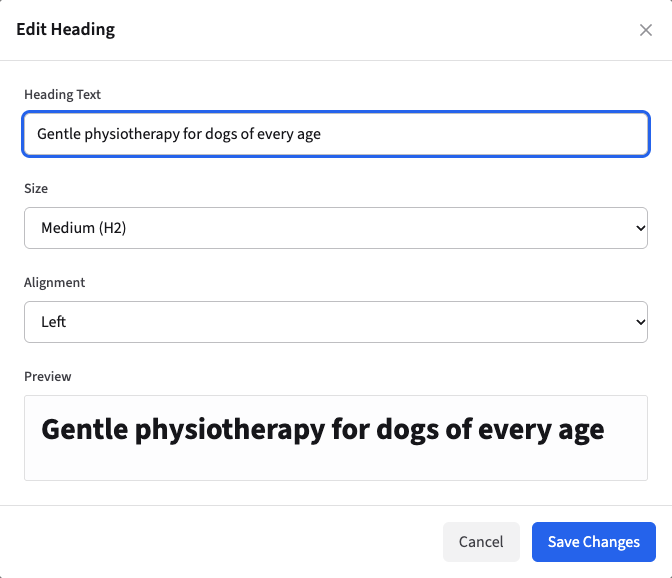
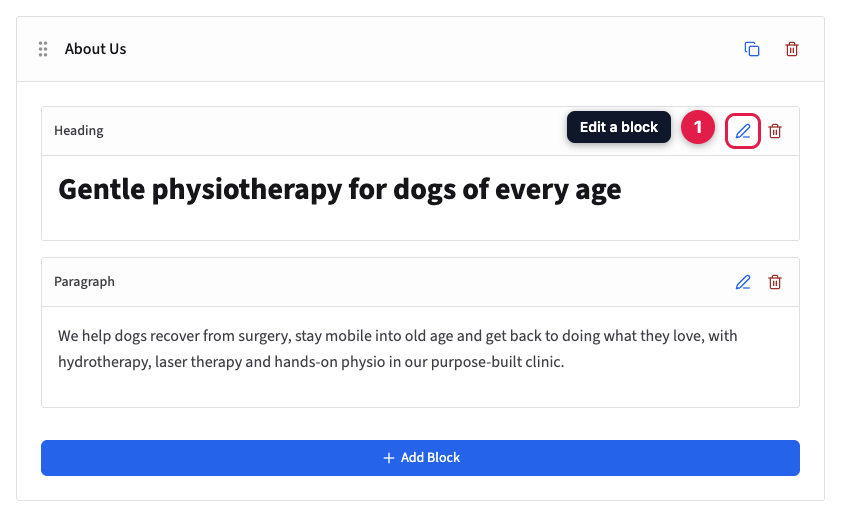
A new block starts with example content. Click the pencil on the block to change it. A window opens with that block's fields and a preview underneath; for a heading, that's the text, the size and the alignment. Click Save Changes.
The section shows each block as it will look. The bin next to the pencil removes a block. To change the order of sections, drag a section by the dotted handle to the left of its name; the two icons on the right of a section copy it or delete it.
4. Colours and the banner image
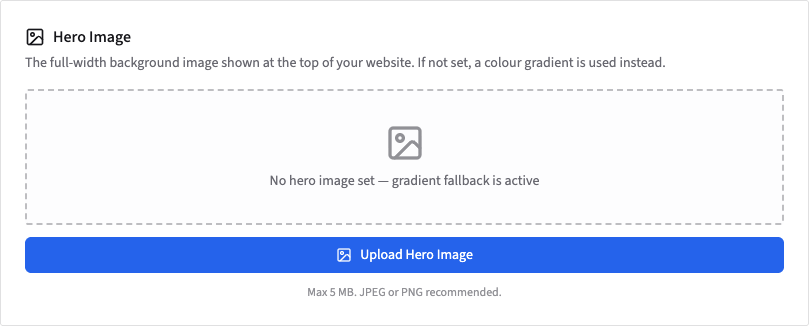
On the Settings tab, Header Background Color sets the colour of the banner at the top of your website. Under Hero Image, click Upload Hero Image to use a photo as the banner instead (up to 5 MB, a JPEG or PNG works best). Once you have a photo, tick Use white text in hero banner if your name is hard to read against it.
To change the name, address, phone number, email or hours at the top of your website, edit them in Settings → Business Profile. The website always uses those.
5. Choose a design
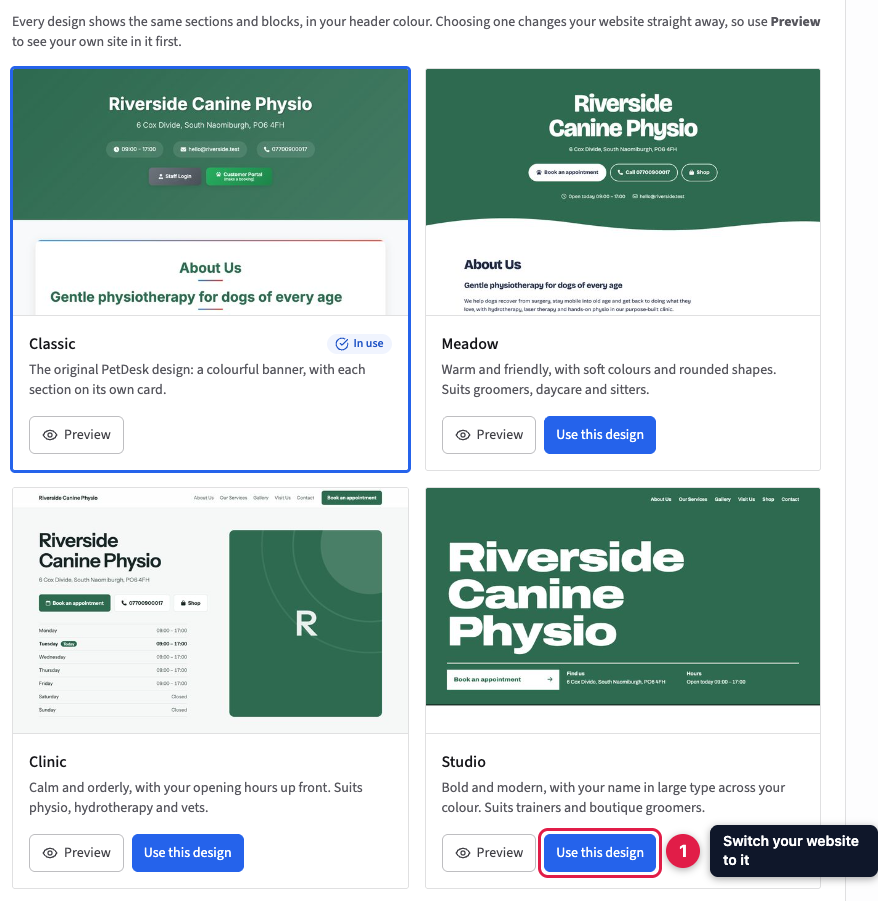
The Design tab has four looks for your website. Every one shows the same sections and blocks, in your header colour, so you can switch as often as you like without rebuilding anything.
- Classic: the original PetDesk design, a colourful banner with each section on its own card.
- Meadow: warm and friendly, with soft colours and rounded shapes. Suits groomers, daycare and sitters.
- Clinic: calm and orderly, with your week's opening hours at the top. Suits physio, hydrotherapy and vets.
- Studio: bold and modern, with your business name in large type across your colour. Suits trainers and boutique groomers.
Click Preview to open your own website in that design in a new tab; nothing changes until you choose. Click Use this design to switch, and your website and online shop change straight away.
6. Check your website
Open your web address in a new tab. Your sections appear below the banner, in the order you set. This is the Classic design; the others arrange the same content differently.