
For vets: logging in and switching business
For vet practices: log in at petdesk.co.uk/app/vp/login with your practice email and password. If several PetDesk businesses have invited you, pick one in the Select Practice window; switch later by clicking the business name at the top of the page. Update your practice phone and address with Edit on the dashboard. "You are not currently linked to any PetDesk businesses" means no business currently gives you access.
This guide is for vet practices. It covers logging in to the vet portal, choosing between businesses if more than one has invited you, and keeping your practice's details up to date. The login page is at petdesk.co.uk/app/vp/login. If you haven't set a password yet, start with the invitation email: see For vets: setting up your login.
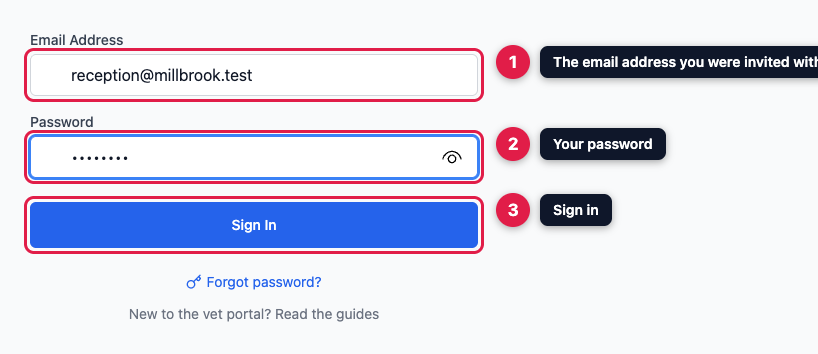
1. Log in
Enter the email address the business invited, usually your practice's shared address, and your password, then click Sign In.
2. Choose a business, if you work with several
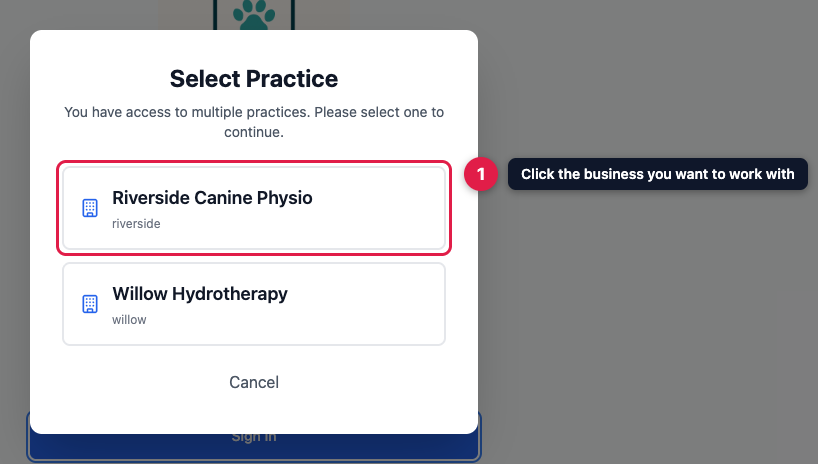
If more than one PetDesk business has invited your practice, for example a physiotherapist and a hydrotherapy centre, a Select Practice window lists them. Click the one you want to work with. You use the same email address and password for all of them. If only one business has invited you, you go straight in.
Each business only shows you the animals it has registered with your practice. You can't see one business's animals while working with another.
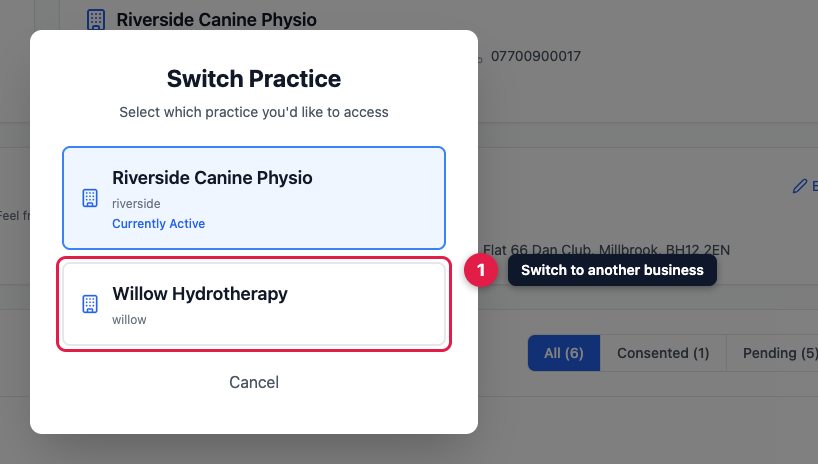
3. Switch to another business
The top of every page shows your practice and the business you're working with, for example "Accessing Riverside Canine Physio". If you work with more than one, click that name, then click another business in the Switch Practice window. There's no need to log out. Help, at the top right, opens these guides.

4. Keep your practice's details up to date
Your practice's details, as the business holds them, are on your dashboard. Click Edit to update your practice name, phone number or address, then click Save Changes. Each business keeps its own copy, so if you work with several, update them with each one.
You can't change your email address, because it's your login. To use a different address, ask the business to add your practice again with the new one.

"You are not currently linked to any PetDesk businesses"
You see this when you log in and no business currently gives your practice access. That happens when a business turns off its vet portal or removes your access. If you think it's a mistake, contact the business directly. If you work with several businesses and only one has stopped, it's simply missing from the list. A business that does this while you're logged in sends you back to the login page.