
Adding a vet practice and inviting it
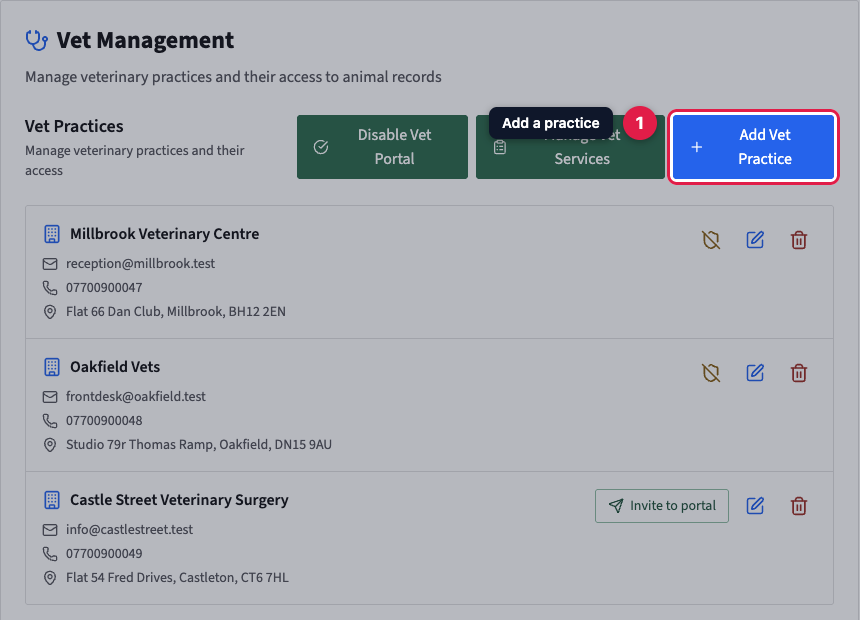
In Settings, then Vet Management, click Add Vet Practice and enter the practice name and a shared email address; with the vet portal on, Create Practice and Send Invitation emails it a set-password link valid for 7 days. Each practice has one login per business, and a practice already invited by another PetDesk business keeps its password and picks your business at login. A practice added before the portal was on has an Invite to portal button.
Add each vet practice you work with under Settings, then Vet Management. While the vet portal is on, adding a practice also emails it a login. If the portal isn't on yet, switch it on first: see Turning on the vet portal.
1. Start a new practice
Go to Settings and choose Vet Management, then click Add Vet Practice.
2. Fill in the practice's details
Only the practice name and email address are required. The invitation goes to that email address, and it becomes the practice's login.
Click Create Practice & Send Invitation. The practice is saved and the invitation email goes out straight away. Notes are for you: the practice never sees them.
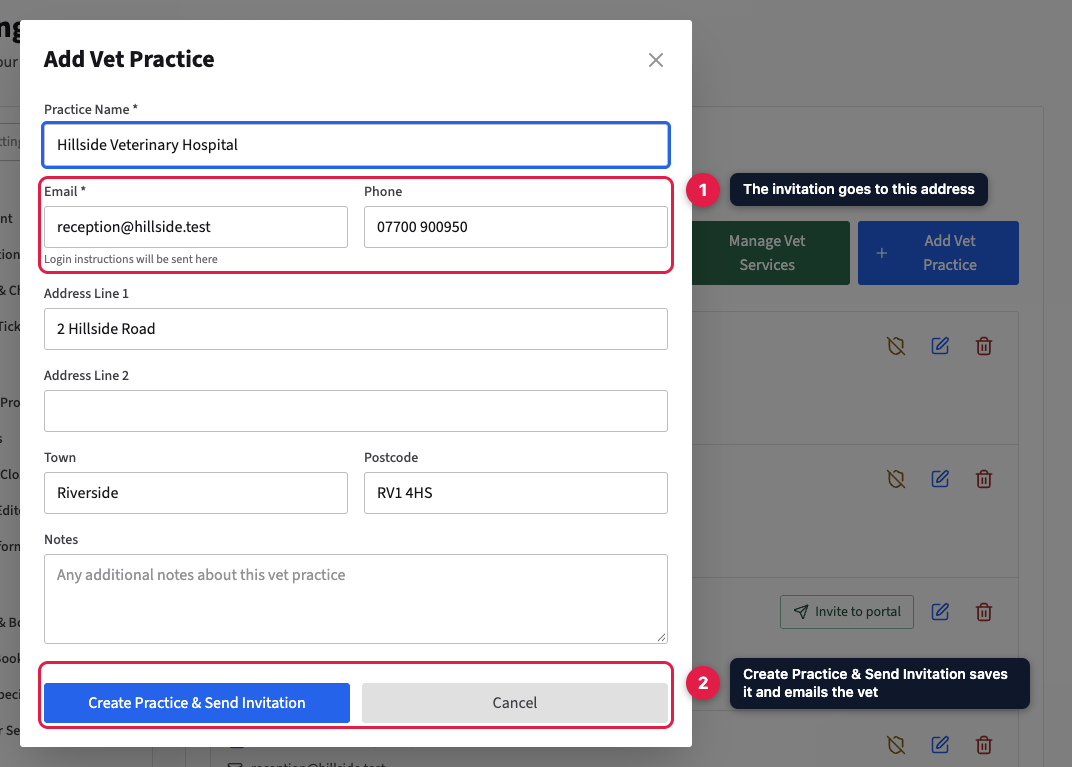
One login per practice. Each practice has one login with your business, so use an address the whole practice shares, such as reception. Everyone at the practice logs in with it and sees the same animals.
3. The invitation is on its way
A green message confirms the invitation was sent, with the practice's setup link underneath. The email already contains it, but if the practice can't find the email, you can copy the link and send it yourself.
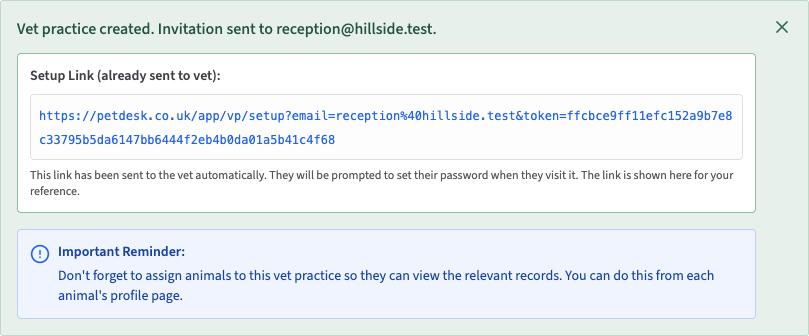
The practice can't see any animals yet. A vet only sees the animals you've linked to their practice, so link each animal to its vet from that animal's record.
What the practice receives
- A practice new to PetDesk gets an email titled "You've been invited to your business on PetDesk", with a Set Up Your Password button. The link works for 7 days. Once they've set a password, they log in to the vet portal with their email address.
- A practice that already has a vet portal login, because another business on PetDesk invited it, gets "New practice access added" instead. They keep the same email address and password. When they log in, they choose which business to work with, and they can switch between them at any time.
Invitation expired? The practice can go to the vet portal login page, click Forgot password? and enter the email address you invited. PetDesk emails them a code, and they choose a password with it.
Inviting a practice you added earlier
A practice you added before the vet portal was switched on has no login. Its row in Vet Management shows Invite to portal: click it to send the invitation. The button is greyed out if the practice has no email address. Click the pencil icon to add one, save, then invite.
