Mobile services: addresses, drop-offs and directions
For dog walkers, mobile groomers and anyone who goes to the client. Tick Mobile service on a service in Settings and its bookings become mobile, online ones too. Clients can have other addresses, each with notes like a door code, and one can be the default. On a booking you choose where to collect from and can tick Drop off somewhere else. The booking page gives Google Maps directions from the same staff member's previous job that day, or from their start address or your business address with From start of day.
If you go to your clients rather than them coming to you — dog walking, mobile grooming, home visits — PetDesk can keep track of where each booking happens, where the animal goes back to, and give you Google Maps directions from one job to the next.
1. Mark the service as mobile
Go to Settings → Services & Booking Types, click the pencil next to the service and tick Mobile service, then click Update Service. Every new booking for that service is now a mobile booking, including the ones your clients make online. A mobile booking shows a house icon on the calendar.
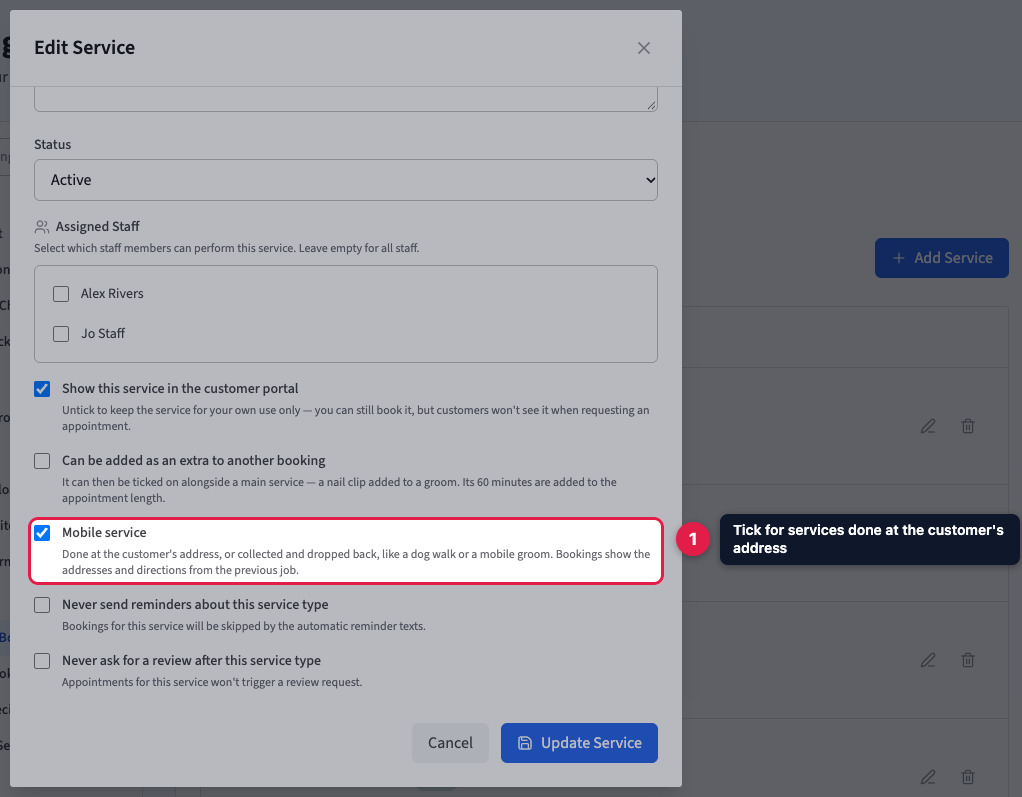
You can still tick or untick Mobile service on a single booking, for the odd home visit from a service that's normally done at your premises.
2. Give a client more than one address
A client's main address is the one on their details. To add another — their mum's house, their workplace, doggy daycare — open the client and, under Other addresses, click Add another address. Give it a name, the address and any notes.
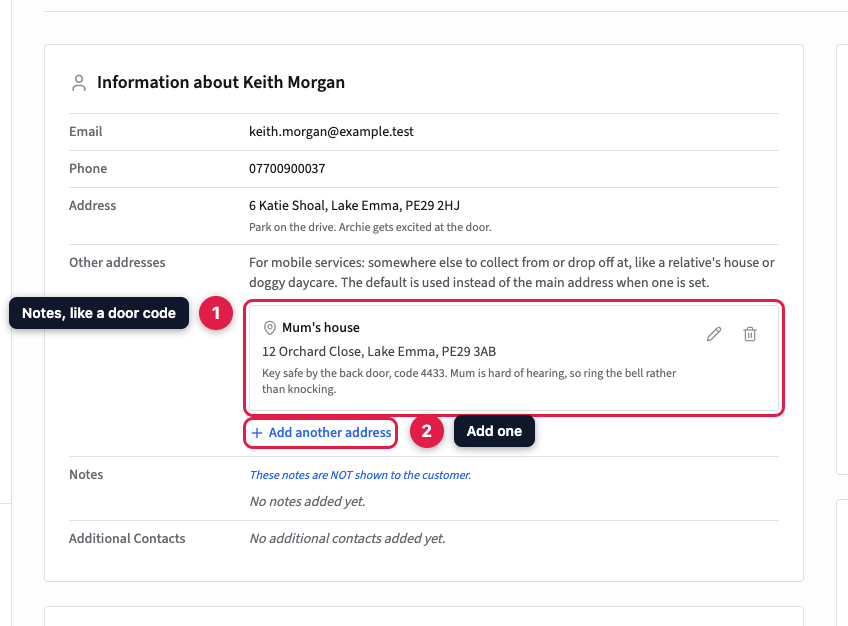
Notes are for whoever turns up: a door or key safe code, where to park, "ring the bell, don't knock". The main address has notes too: click Edit Client and fill in Address notes. Every note shows on the booking.
3. Always collecting from somewhere else?
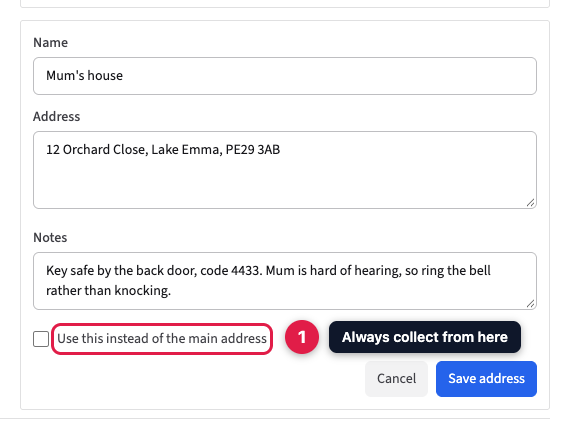
If you always pick the animal up from the same other address, edit it with the pencil and tick Use this instead of the main address. New mobile bookings for that client then start there, and you can still choose a different address on any booking. Only one address can be the default.
Clients can do this themselves. In the customer portal, their Profile has the same Other addresses list, so they can add a new address or change a door code without phoning you.
4. Choose the addresses on the booking
When you book a mobile service, Mobile service is ticked for you and Collect from / visit at appears, set to the client's default address. A mobile groom just uses that one. If the animal is going back somewhere different — "collect Trixie from home but drop her at my mum's" — tick Drop off somewhere else and choose the address under Drop off at.
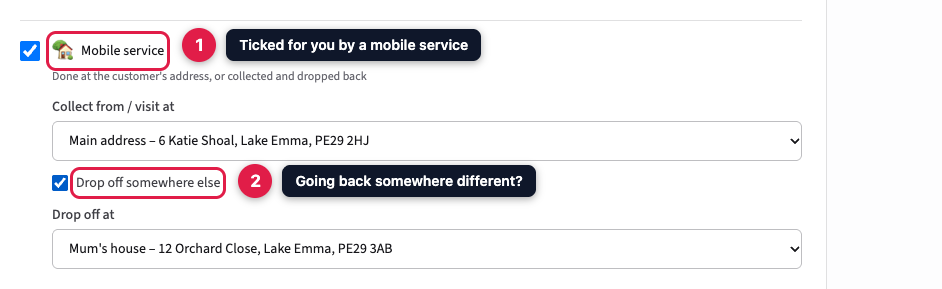
To change them later, open the booking and click Edit Booking. On a visit with several pets, changing the addresses changes them for every pet on the visit.
5. Get directions from your last job
A mobile booking's page shows where to collect from and where to drop off, each with its notes and two Google Maps links: Directions and View on map. When the drop-off is the same as the collection address, there's just one Visit at address.
Mobile staff go from job to job, so directions to the collection address start from the end of the same staff member's previous job that day. The line above the addresses says which job that was. Click From start of day to get directions from your start address instead; PetDesk remembers your choice on each phone or computer. Directions to the drop-off start from the collection address.
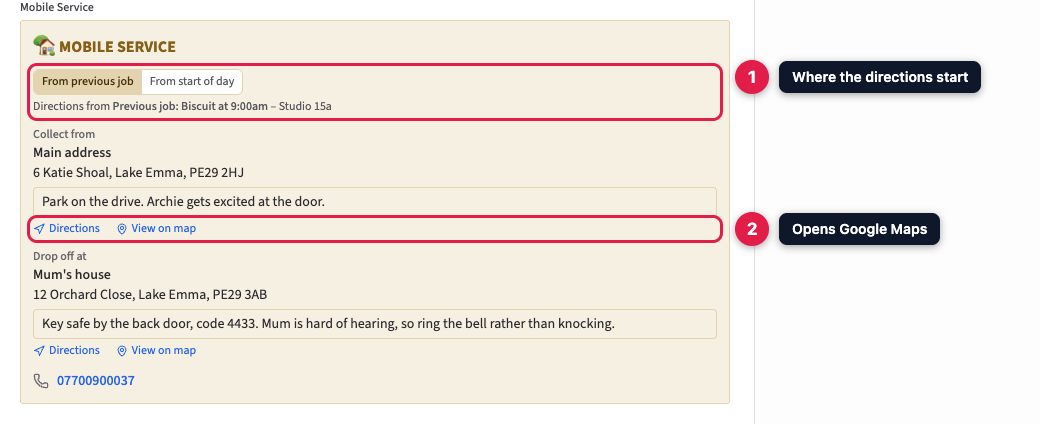
The first job of the day starts from the staff member's start address. Bookings with no staff member, and staff without a start address, start from your business address. A job at your premises counts as a previous job too, and the next one starts from there.
6. Set where each person starts their day
If someone starts their round from home rather than your business address, go to Settings → Staff Management, click the pencil next to them and fill in Start address, then save. Leave it blank to use the business address.

Only admins see start addresses in Staff Management. Anyone who opens that person's first mobile booking of the day can see it in the directions, though, so bear that in mind if it's their home.
7. What your clients see when they book online
When a client picks a mobile service in the customer portal, a We come to you box replaces your premises' address. They choose which of their saved addresses you should visit or collect from, and can tick Drop off somewhere else too. The request reaches you with those addresses already on it.
