
Emailing all your vet practices
In Settings, then Mass Email, the Vets tab sends one email to every practice with a vet portal login with you; it appears only while the vet portal is on. Practices you haven't invited, or whose access you've revoked, don't receive it. Your business name goes in front of the subject, replies come to your business email, and vet emails don't count towards your mass email allowance.
To tell every practice you work with something at once, such as new opening hours, a new treatment or a change to how you take referrals, send one email from Settings, then Mass Email. It needs the vet portal on and a paid plan.
1. Open the Vets tab
Go to Settings and choose Mass Email, then the Vets tab. The tab only appears while the vet portal is on. It shows how many practices the email will go to.
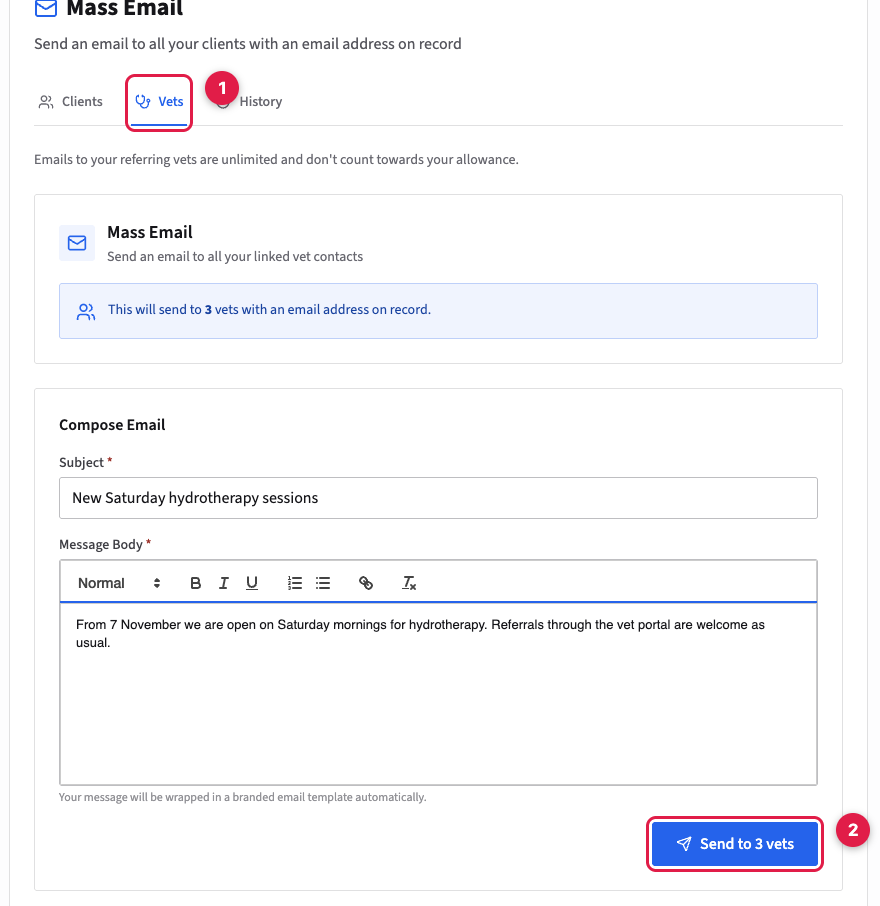
2. Write and send
Enter a subject and your message, then send. Your business name goes in front of the subject, so practices can see who it's from, and replies come back to your business email address.
Who receives it
Every practice with a vet portal login with you. Practices you've added but not invited don't receive it, and neither do practices whose access you've revoked. Emails to vets don't count towards your plan's mass email allowance.
The Vets tab is separate from emailing your customers on purpose. Many businesses record an animal's vet only as an emergency contact, and those practices never agreed to hear from you.