
Merging duplicate customers
The Find Duplicate Customers report under Reports finds customers sharing a phone number or email address, ignoring +44/0/44 formatting. Choose which record is the master, check the preview showing which animals will move, and pair up any animal that is on both records, then merge. Bookings, vet referrals, weights, files and account credit all move to the master. A merge cannot be undone, so do not merge two records unless you are certain they are the same person.
The same person ends up on your system twice more often than you'd think — usually because they booked online with a different email from the one you had, or their number went in once with the leading zero and once with +44. PetDesk finds these and merges them properly. Go to Reports and open Duplicate Customers.
1. Run the report
It looks for customers sharing a phone number or an email address. Phone matching ignores formatting, so 07700 900123, +447700900123 and 447700900123 are all treated as the same number — which is where most duplicates hide.

2. Read the groups
Each set of duplicates is shown once, with the strongest matches first: Matched on phone and email, then phone only, then email only. Each group shows the customers involved, their animals with a booking count against each, and their total bookings.
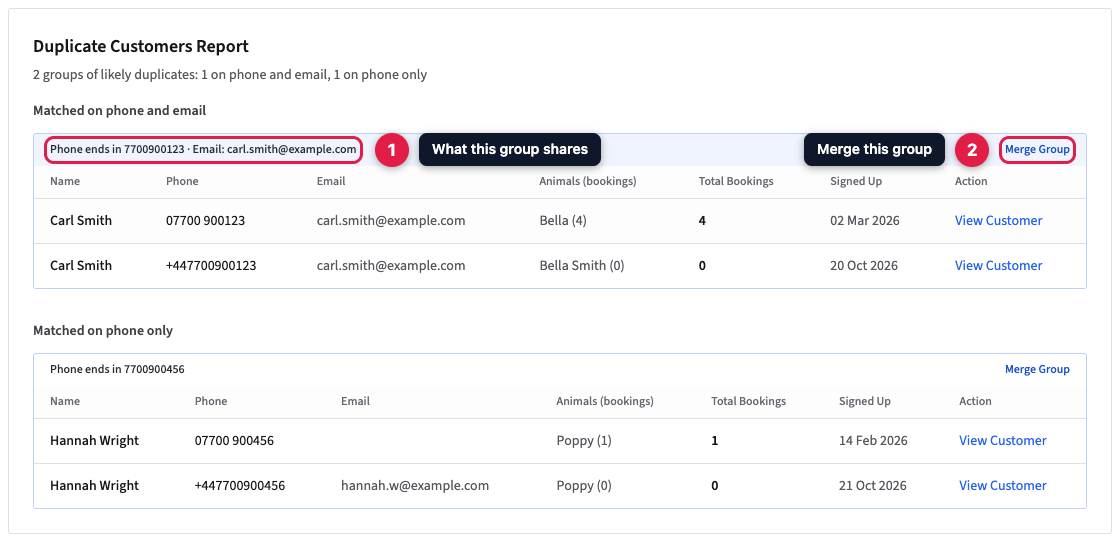
Those booking counts are there to help you choose. The record with the real history is almost always the one to keep.
3. Check it really is the same person
Do this before merging, not after. Two people genuinely can share a phone number — a couple, a household, a business line, or two owners who use the same dog walker. If the names and animals don't line up, leave them alone.
4. Choose which record survives
Click Merge on the group and pick one customer as the master. That's the record that stays, with its contact details. Everything from the others is moved onto it.
5. Check the preview before confirming
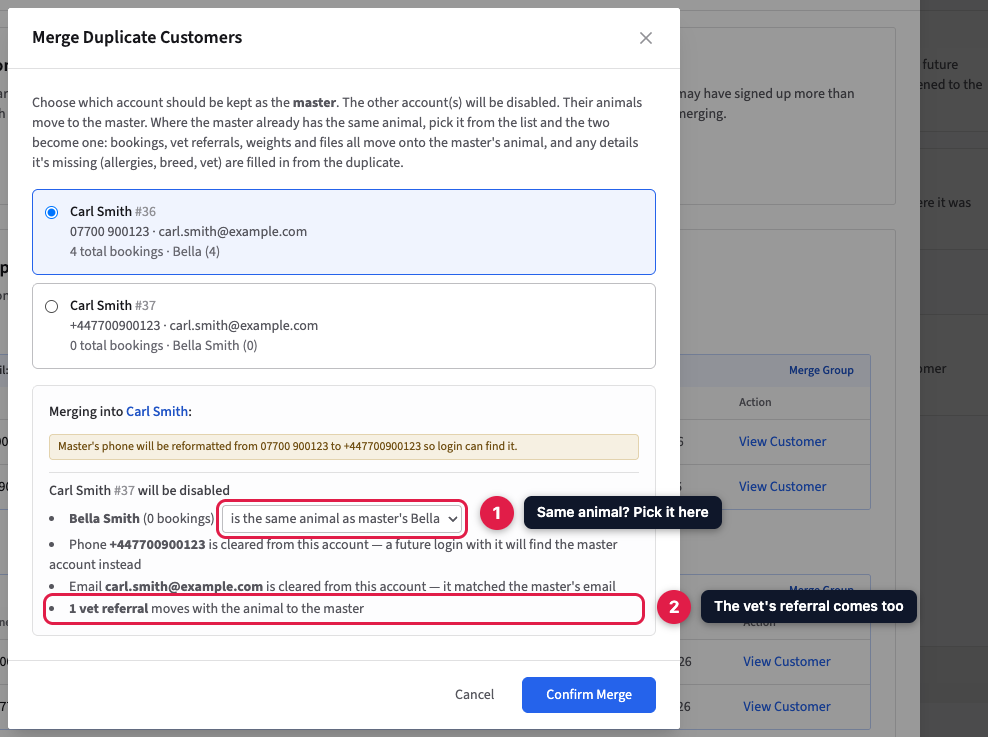
You're shown exactly what's about to happen — the master's details, which animals are moving, and how the phone number will be stored once it's been tidied up. Where an animal is on both records, pick it from the list next to the duplicate's animal (PetDesk pairs up matching names for you, but a vet may have typed Reg where you have Reggie). Read it. This is the last point at which nothing has changed.
6. Merge
Confirm and the animals and their history move across to the master record: bookings, vet referrals, weights, files and account credit. Anything the master is missing, such as an address, allergies or the referring vet, is filled in from the duplicate. You end up with one customer holding everything.
A merge can't be undone. There's no unmerge button, so spend the extra few seconds on the preview. If you're not sure two records are the same person, don't merge them — a duplicate is untidy, but an incorrect merge mixes up two people's animals.
Stopping them happening
Most duplicates start with a customer who already exists booking online as if they were new. Getting people into the customer portal with the email you already hold is the fix — once they're logged in, their bookings attach to the record you've got.